
Welcome to Editly — your all‑in‑one AI studio in the browser.
You can use it to:
- Generate images from text or from existing pictures
- Create short AI videos
- Remove backgrounds with one click
- Restore old or low‑quality photos
This guide is for new users who just landed on the site and are thinking:
“Okay, this looks cool… but where do I start?”
Let’s walk through it step by step.
1. What Editly Can Do
Editly is organized into three main areas:
- AI Create
- Generate images and videos from textTurn an existing image into a new one (image‑to‑image)Use reference images to keep style or characters consistent
- AI Background Removal
- Upload a photoGet a clean cut‑out with no backgroundGreat for product photos, profile pictures, and thumbnails
- Photo Restore
- Fix old, damaged, or blurry photosClean up scratches, noise, and faded colorsMake them look sharp and shareable again
You can access everything directly in your browser — no apps, no installs.
2. The Fastest Way to Try It: Quick Create on the Home Page
If you just want to see what Editly can do in under a minute, start on the home page.
On the left, you’ll see a simple form:
- Type your prompt
Describe what you want. For example: - “A minimal blue browser extension logo with the letter E on a white background”“A girl dancing in the street at sunset, cinematic, warm tones”
- Add reference images (optional)
- You can upload up to 5 imagesThis helps the model follow a specific style, character, or layout
- Pick an aspect ratio (optional)
- Options include 1:1, 16:9, 9:16, 4:3, and moreNot sure what to choose? Just leave it on Auto — Editly will pick a good default
- Hit “Generate”
- Once you click the button, your job is added to the queueYou can keep working or submit more prompts — you don’t need to wait
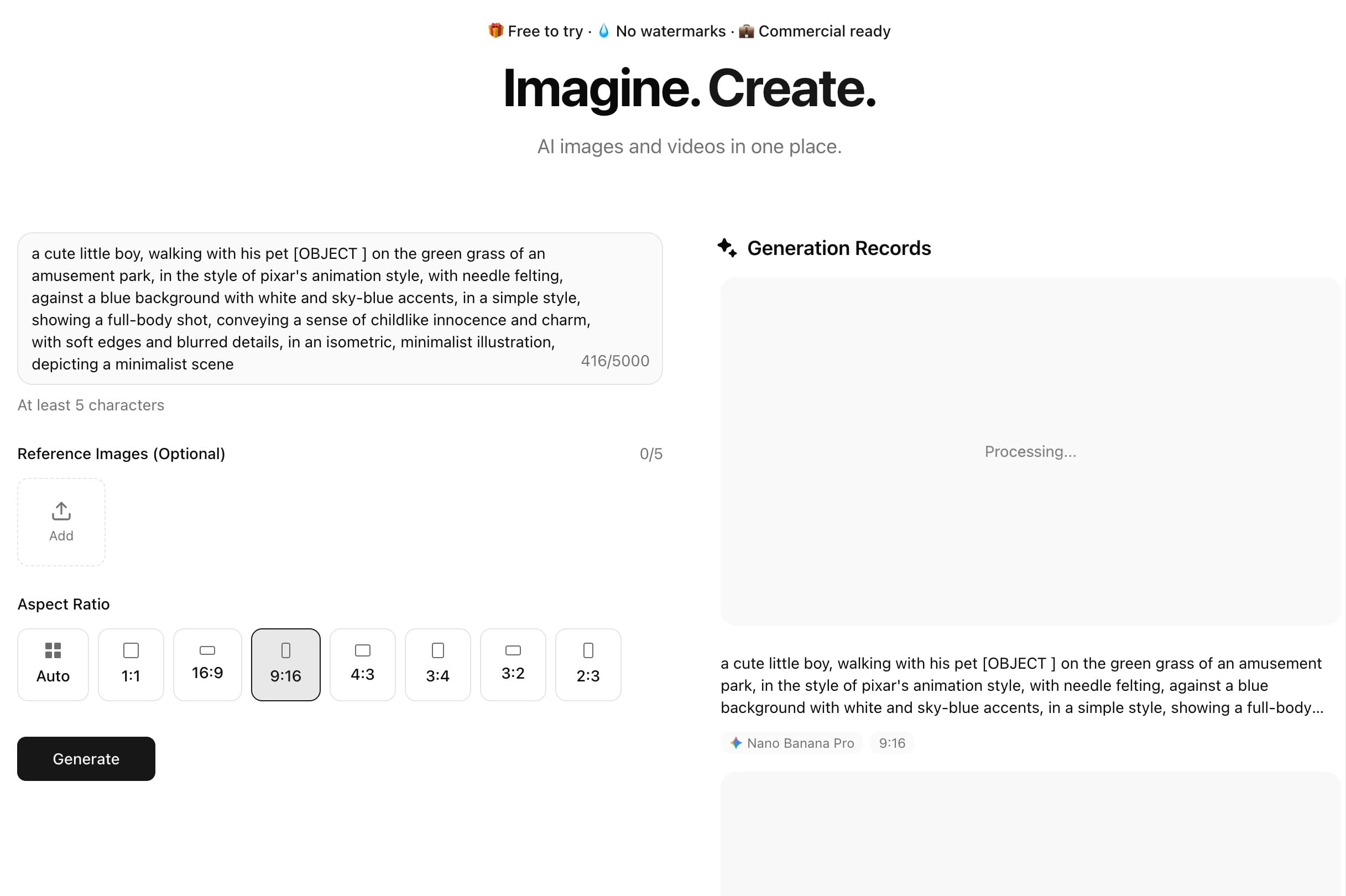
On the right side, you’ll see your generation history update as results come in.
How long does it take?
- Most images are ready in 30–60 seconds
- Some more complex prompts may take a little longer
- The system is non‑blocking:
- You can send multiple jobs at onceYou don’t have to wait for one to finish before starting the next
- Paid users get higher concurrency, so bulk creation is smoother
3. AI Image Generation: From Simple Prompts to Consistent Styles
When you’re ready to do more than a quick test, it helps to understand how image generation works.
3.1 Text‑to‑Image
Text‑to‑image is the classic “type what you want, get a picture” workflow.
Some tips:
- Be clear about subject: “female character in cyberpunk city”
- Add style: “pixel art”, “studio lighting”, “anime style”, “flat illustration”
- Add mood and colors: “moody lighting, blue tones”, “bright and playful”
- Add format if needed: “clean app icon”, “website hero image”, “YouTube thumbnail”
3.2 Image‑to‑Image with References
If you upload reference images, Editly can:
- Keep the same character across multiple shots
- Follow a similar color palette or art style
- Turn a rough sketch or draft into a polished image
This is especially useful for:
- Brand assets
- Product photos in a consistent style
- Character sheets and concept art
4. Picking the Right Model: Quality vs Speed
Editly supports multiple image models so you can choose what matters more to you: quality or speed.
4.1 High‑quality models
- Nano Banana Pro
- Nano Banana
These are your go‑to choices if you care about:
- Fine details
- Consistency
- Overall image quality
They work well for:
- Marketing visuals
- Illustrations and posters
- Character designs
4.2 Faster models
- GPT Image 1.5
- Grok Image
- Stream 4.5
Choose these when you want:
- Quick drafts
- Fast iteration
- Many variations in a short time
Great for:
- Brainstorming
- Thumbnail ideas
- Rough mockups
You can always start with a faster model to explore ideas, then switch to a higher‑quality model once you know what you want.
5. AI Video Generation: Text to Short Clips
Editly also supports AI video models, so you can turn prompts into short clips.
Current and upcoming models include:
- Hai Luo (great for creative short clips)
- GPT Sora 2 and Sora 2 Pro (high‑quality, cinematic results)
- Google Veo 3.1 (rolling out soon)
The basic flow is similar to image generation:
- Describe what happens in the scene
- Choose a model
- Set duration, resolution, and aspect ratio
- Generate and preview your video
Common use cases:
- Short social clips
- Concept previews
- Simple story beats or mood pieces
6. Deep Creation on the “Create” Page
If the home page feels like “quick demo mode,” the Create page is where you go when you want more control.
On this page, you’ll see a chat‑style interface with more advanced options.
6.1 Chat‑based workflow
At the bottom, there’s a message box where you can:
- Choose whether you’re creating an image or a video
- Type natural language instructions, just like talking to an assistant
- Iterate: “Make it brighter”, “Try a different angle”, “Use a warmer color palette”
This is perfect for refining an idea step‑by‑step instead of getting everything right in one long prompt.
6.2 Advanced settings
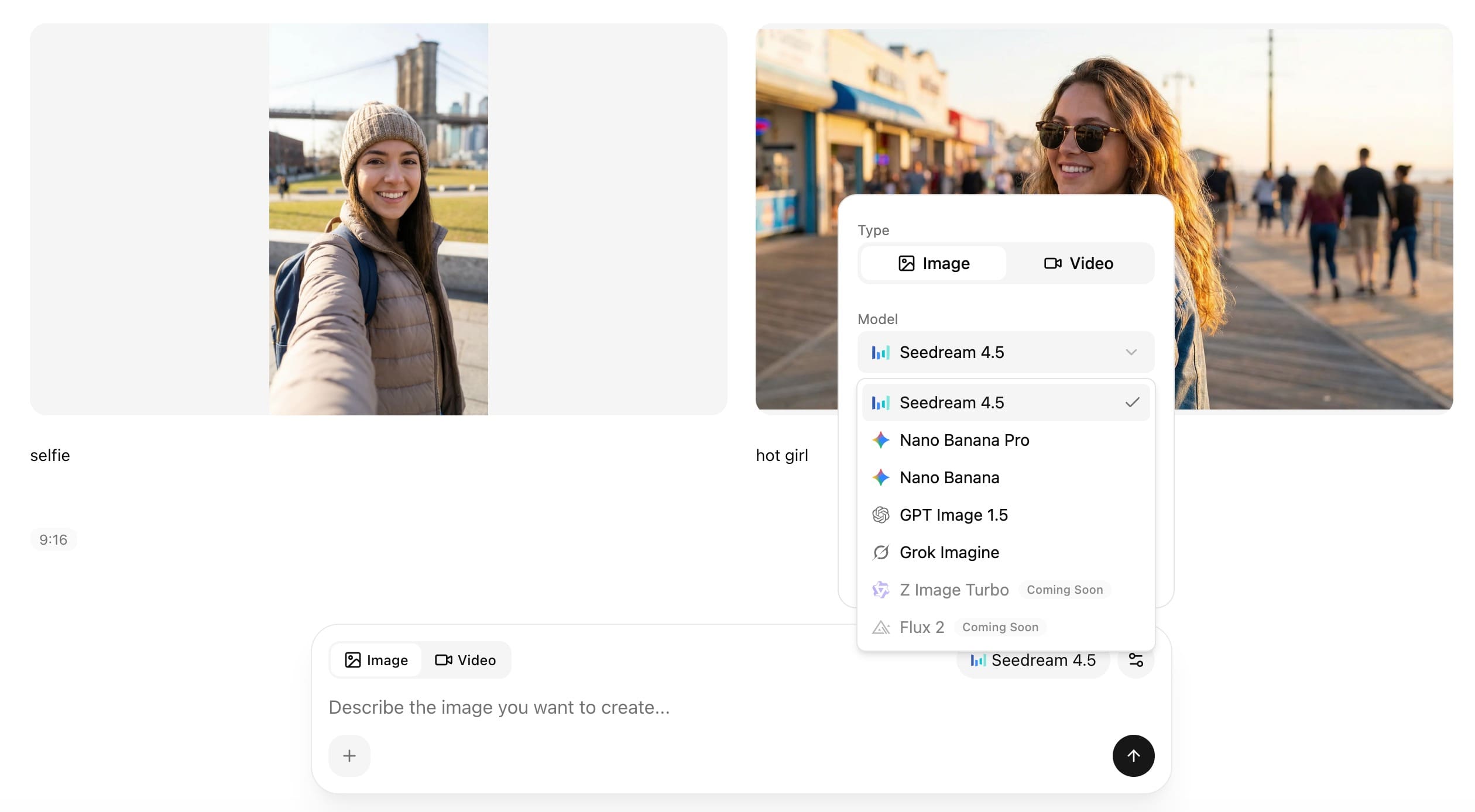
On the side panel, you can fine‑tune:
- Model (e.g. Hai Luo 2.3, Sora models, Veo models, etc.)
- Duration (for video: 5s, 10s, etc.)
- Resolution
- Aspect ratio
- Other tuning options as they become available
When your job finishes, you can:
- Download the result to your computer
- Continue the conversation and generate variations
- In some workflows, turn an image into a video sequence
7. Background Removal: Clean Cut‑outs in One Click
The AI Background Removal tool is built for speed and simplicity:
- Go to the AI Background / Remove Background page
- Upload your image
- Let the model detect the subject and remove the background automatically
- Download a clean PNG with a transparent background
It works especially well for:
- Product shots (e‑commerce, catalogs, marketplaces)
- Profile photos
- Thumbnails and social media graphics
The model is tuned to handle tricky edges like:
- Hair and fur
- Glasses and jewelry
- Straps, thin lines, and small gaps
The goal is to give you something you can drop straight into your design tool without spending time manually masking.
8. Photo Restore: Bring Old Photos Back to Life
If you have old family photos, scanned prints, or just low‑quality camera shots, the Photo Restore tool can help.
How it works:
- Open the Photo Restore / Old Photo Repair page
- Upload your photo
- Editly will:
- Reduce noise and grainFix scratches and damageImprove sharpness and detailsEnhance colors where possible
- Download the restored version
The restoration is designed to keep faces looking natural — not plastic or over‑filtered — while still making the image much clearer and easier to reprint or share.
9. Credits and Pricing: How Usage Is Counted
Editly uses a credit system.
Each image or video you generate consumes a certain number of credits, depending on:
- The model you choose
- Whether it’s an image or video
- Video duration and resolution
9.1 When you run out of credits
If you’re low on credits:
- Go to the Pricing page
- Pick a plan or one‑time credit pack that fits your usage
- Complete the checkout
- Credits are added to your account, and you can continue generating
There are options for:
- Light users who only need occasional generations
- Regular creators who use Editly every week
- Heavy users who generate a lot of images/videos each month
9.2 What you get for your money
A few important points:
- Failed generations don’t cost credits
- If something goes wrong on our side, you’re not charged for it
- No watermarks
- Your downloads are clean and ready to use
- Commercial use
- Paid generations are designed to be used in real projects, including commercial work (details are in the Terms of Service)
10. A Simple Path for New Users
If you’re just getting started, here’s a suggested path:
- Test a simple image on the home page
- Type a short prompt and generate your first imageGet a feel for speed and quality
- Add a reference image
- Upload a photo or style referenceSee how the model follows the look and feel
- Explore the Create page
- Try a chat‑style session to create a more polished image or a short videoPlay with models, aspect ratios, and durations
- Try the utility tools
- Remove a background from a product shotRestore an old photo you care about
If something doesn’t look right or a job keeps failing:
- Try adjusting your prompt (shorter, clearer, more specific)
- Switch to a different model
- Check your connection and login status
- Reach out via the support options on the site if the issue persists
Editly is designed to be a practical tool you can actually build with — not just a toy demo.
Once you’re comfortable with the basics, you can use it for everything from quick sketches and thumbnails to production‑grade visuals and videos, all from your browser.